For iPhone and iPad

Every day counts.

DayFlow counts down to holidays, deadlines and goals — exactly the way you want: calendar days, working days, minus public holidays. With widgets and reminders.

iOS 17 or later · iPhone and iPad · English and Polish
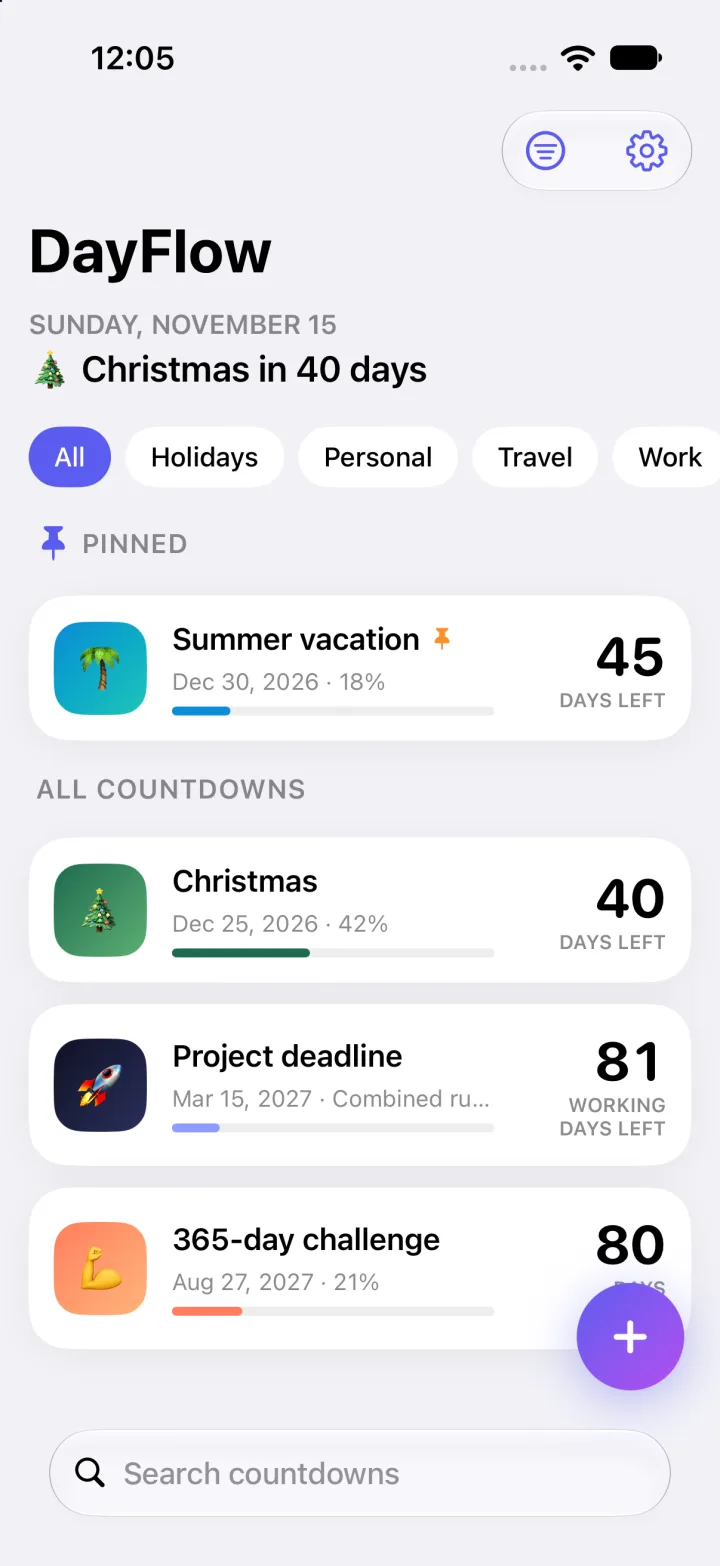
DayFlow dashboard with countdowns: Summer vacation, Christmas, Project deadline and a 365-day challenge
Working days & holidaysSkips weekends and public holidays (PL, DE, FR, US).
WidgetsSmall, medium, large and Lock Screen.
Smart remindersWith the current number of days in the text.
Private & offlineYour data stays on your device.

Features

Everything you need to count

From a simple “days until vacation” to project deadlines that respect public holidays.

Three directions

Count down to a date, count up from a start, or track progress between two dates.

Flexible rules

Calendar days, working days, custom weekdays, public holidays — or all combined.

Your own days off

Add single days off or days that repeat every year. Choose whether the target day counts.

Many display styles

Large number, ring, bar, segments, scale with dates, detailed or minimal.

Organised dashboard

Categories, pinned countdowns, search, list or grid layout and sorting.

Light & dark, EN & PL

English or Polish regardless of system language. Light, dark or system theme.

Your counters

See every countdown at a glance

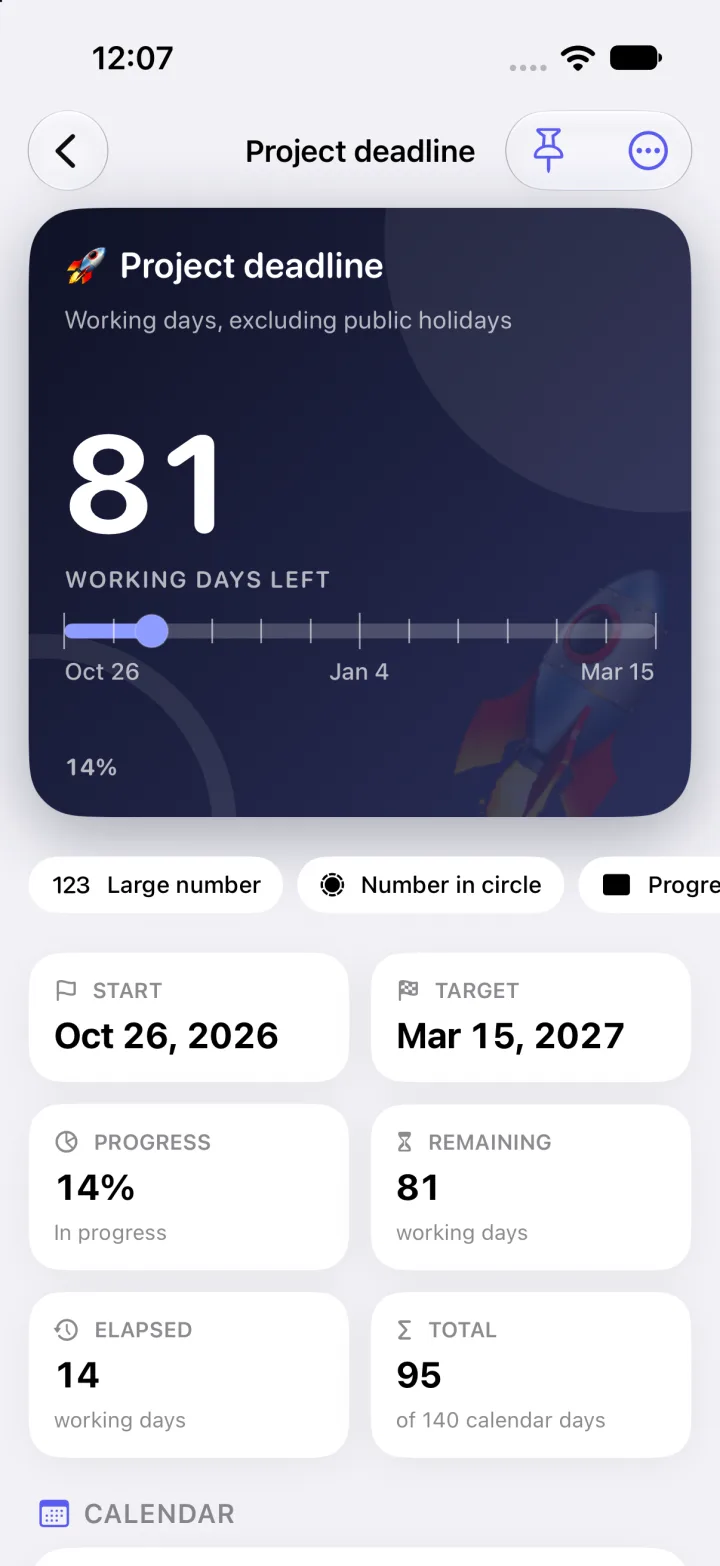
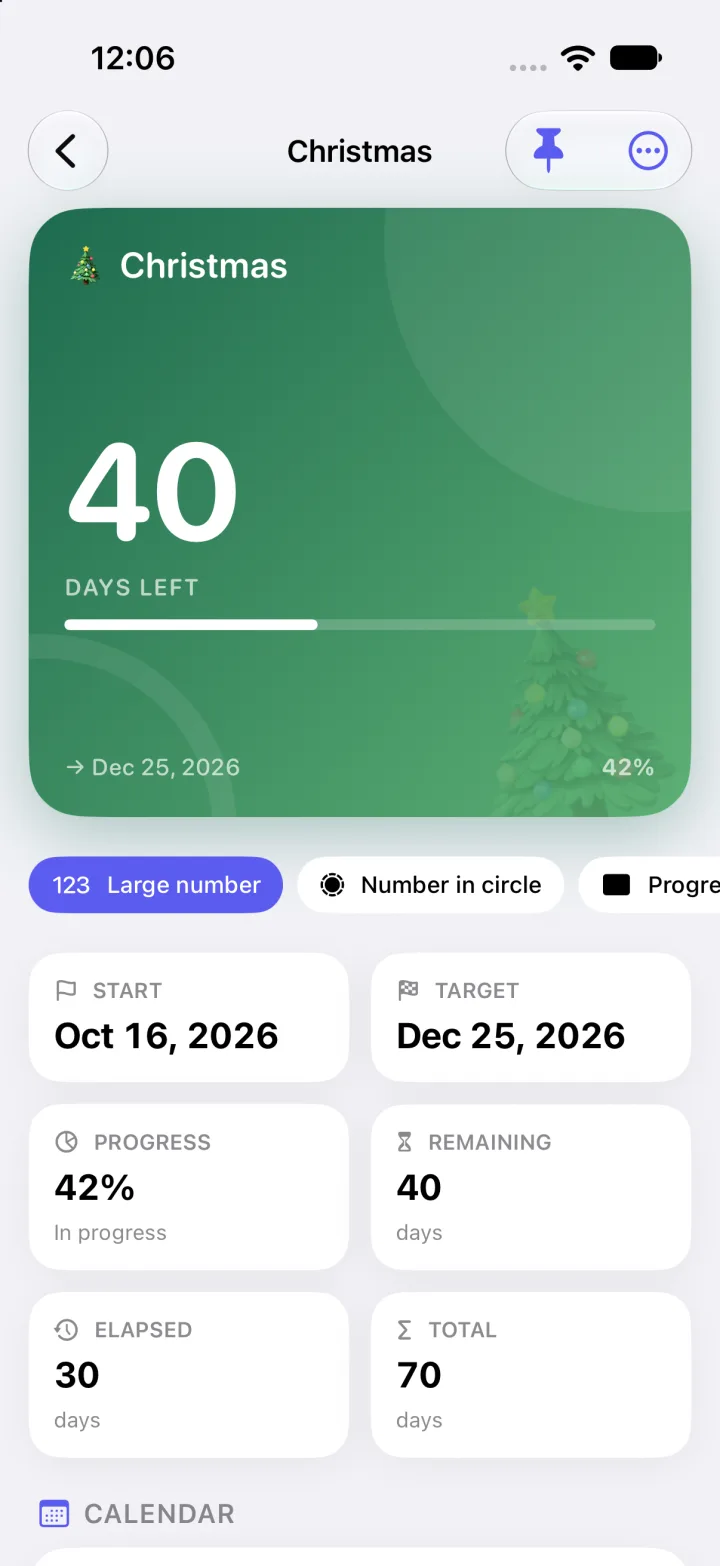
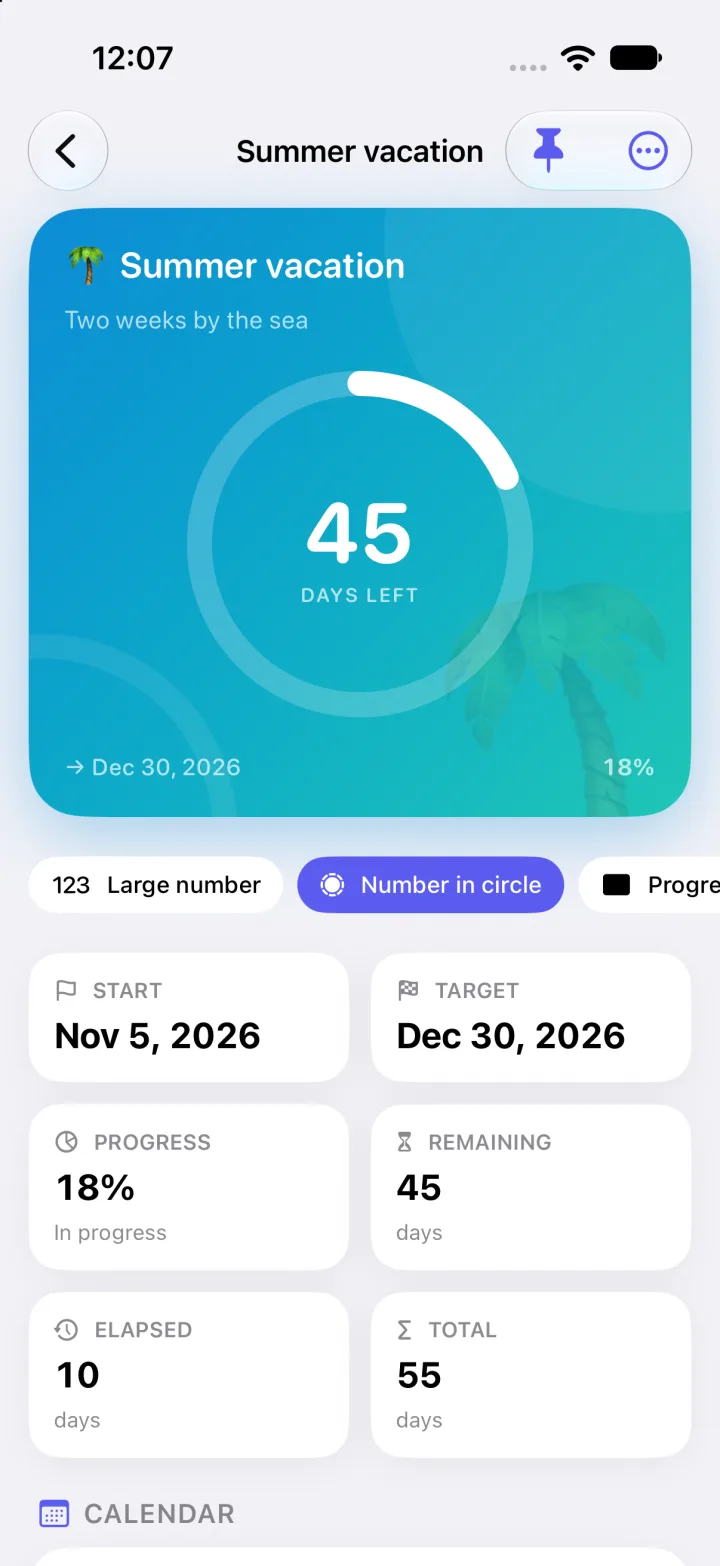
A tidy dashboard, and a detail view with progress, a day-by-day calendar and the full calculation.
Create a counter

Six steps to your perfect countdown

One guided editor covers everything — from the name to the widget’s typography.

Basics

Name it, describe it, give it an icon.
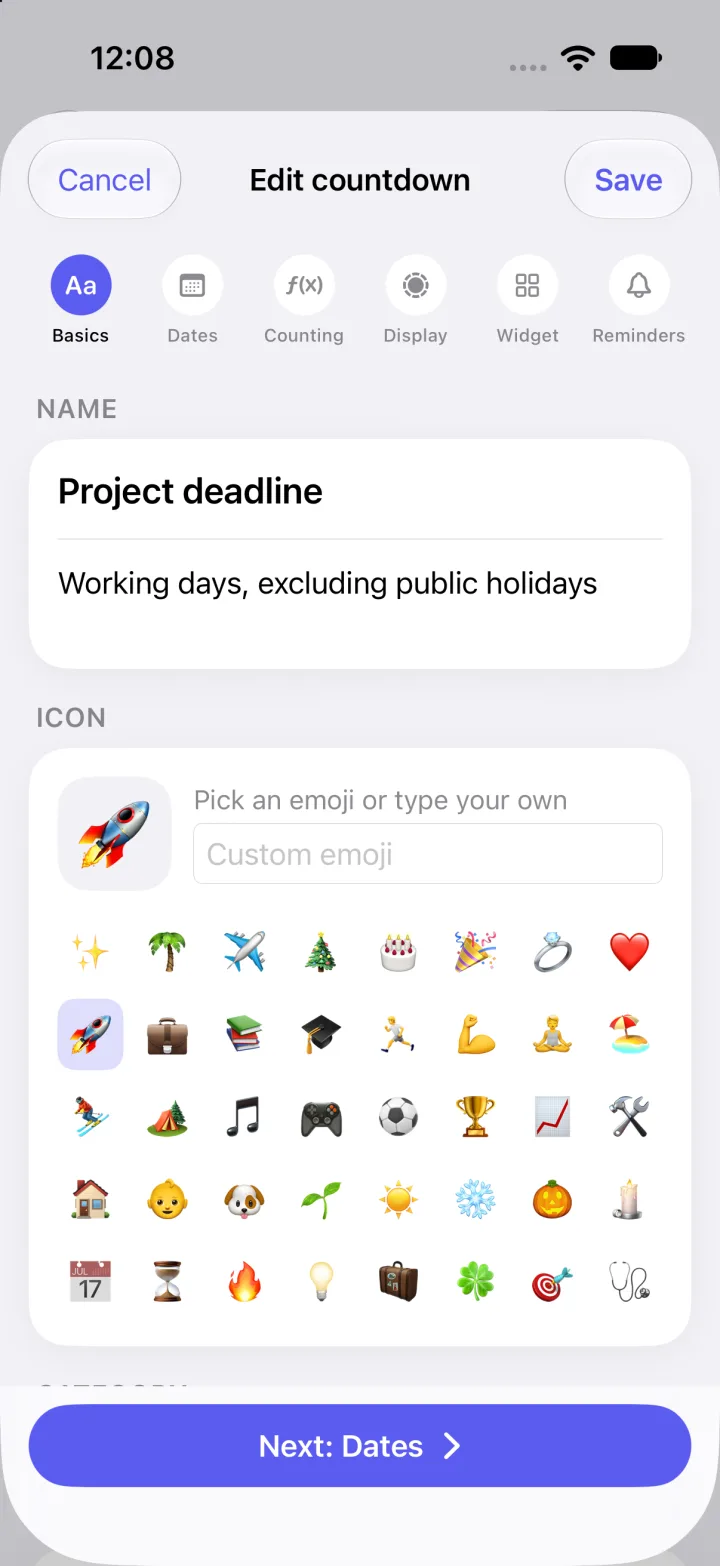
  • A name and an optional description shown with the counter.
  • Pick an emoji icon or type your own.
  • Assign a category to filter the dashboard.
Edit screen, Basics step: name, description and emoji icon picker

Dates

Choose what you’re counting and when.
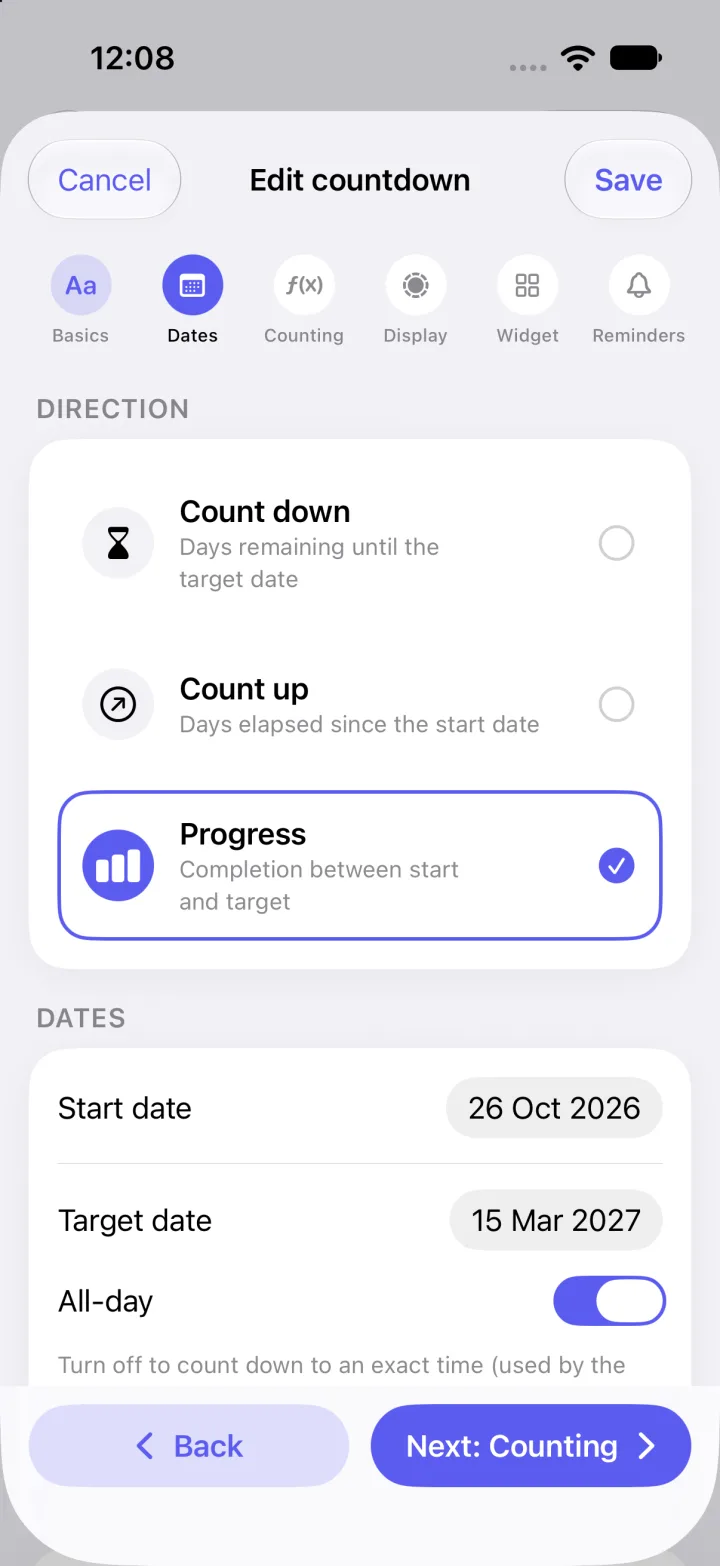
  • Count down to a date, count up since a start date, or track progress between the two.
  • Set start and target dates.
  • Turn off “All-day” to count down to an exact time.
Edit screen, Dates step: direction (count down, count up, progress), start and target dates

Counting

Decide which days count.

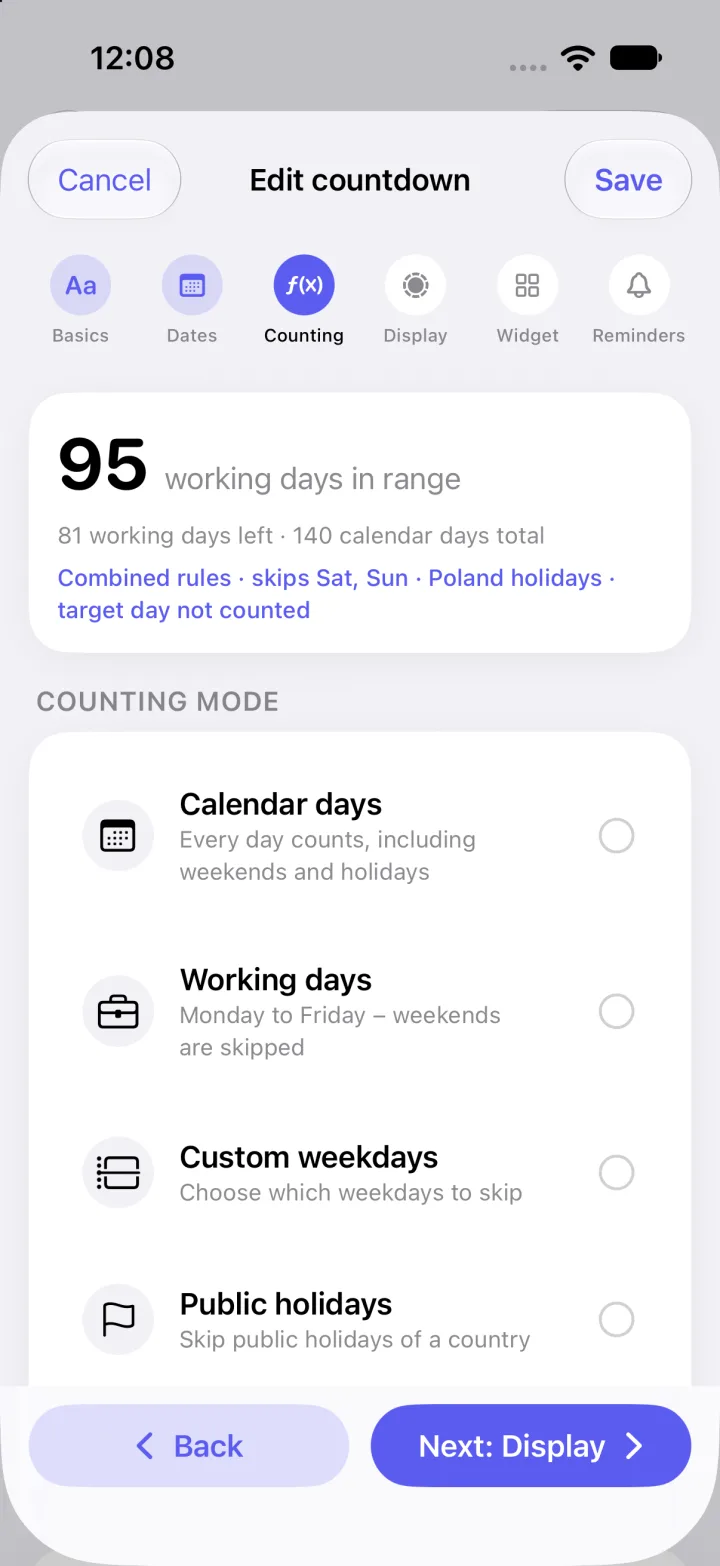
  • A live preview shows the result as you change the rules.
  • Calendar days, working days, custom weekdays, public holidays or combined.
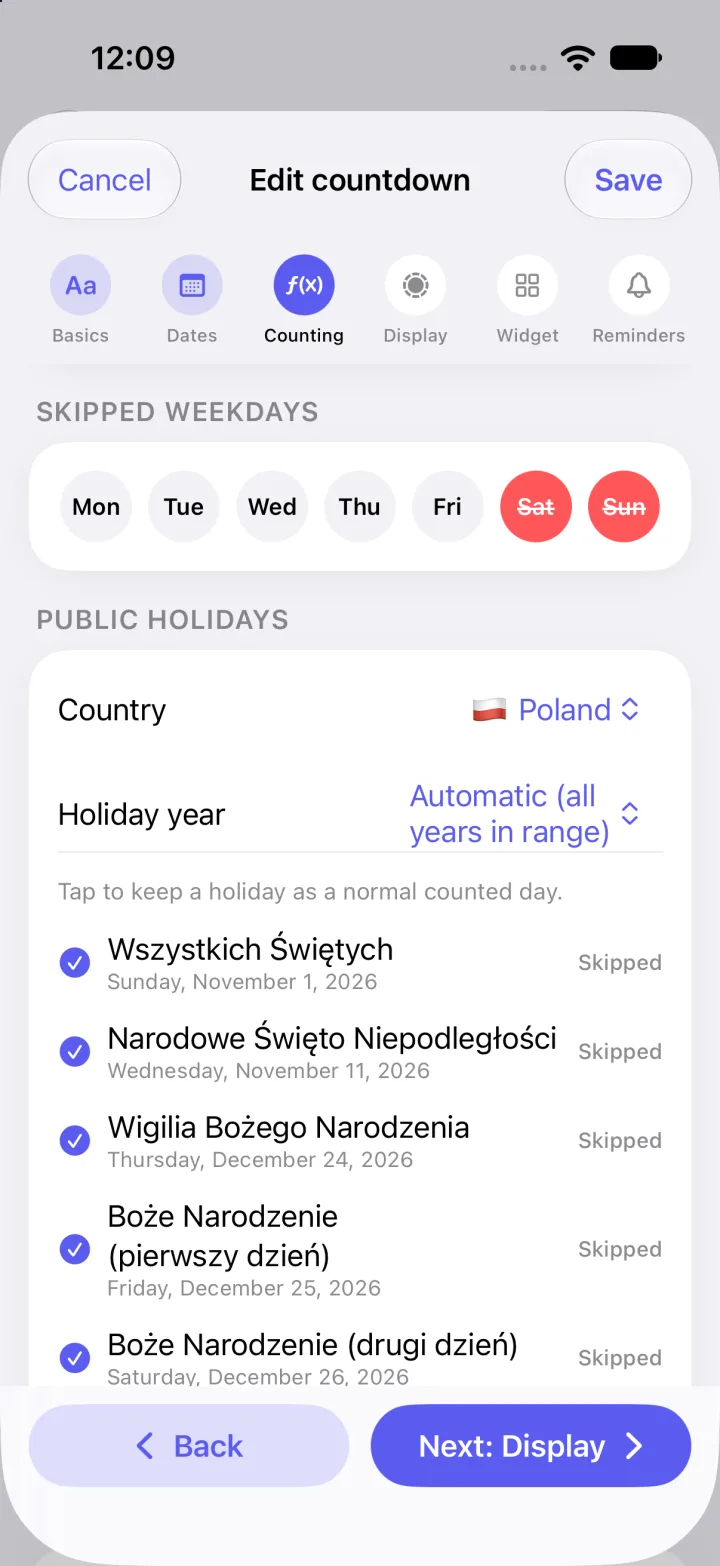
  • Skip any weekdays, pick the holiday country and year, and keep individual holidays as normal days.
Counting step: calendar days, working days, custom weekdays and public holidays modes
Counting step: skipped weekdays, holiday country and list of Polish public holidays

Display

Pick how the counter looks in the app.
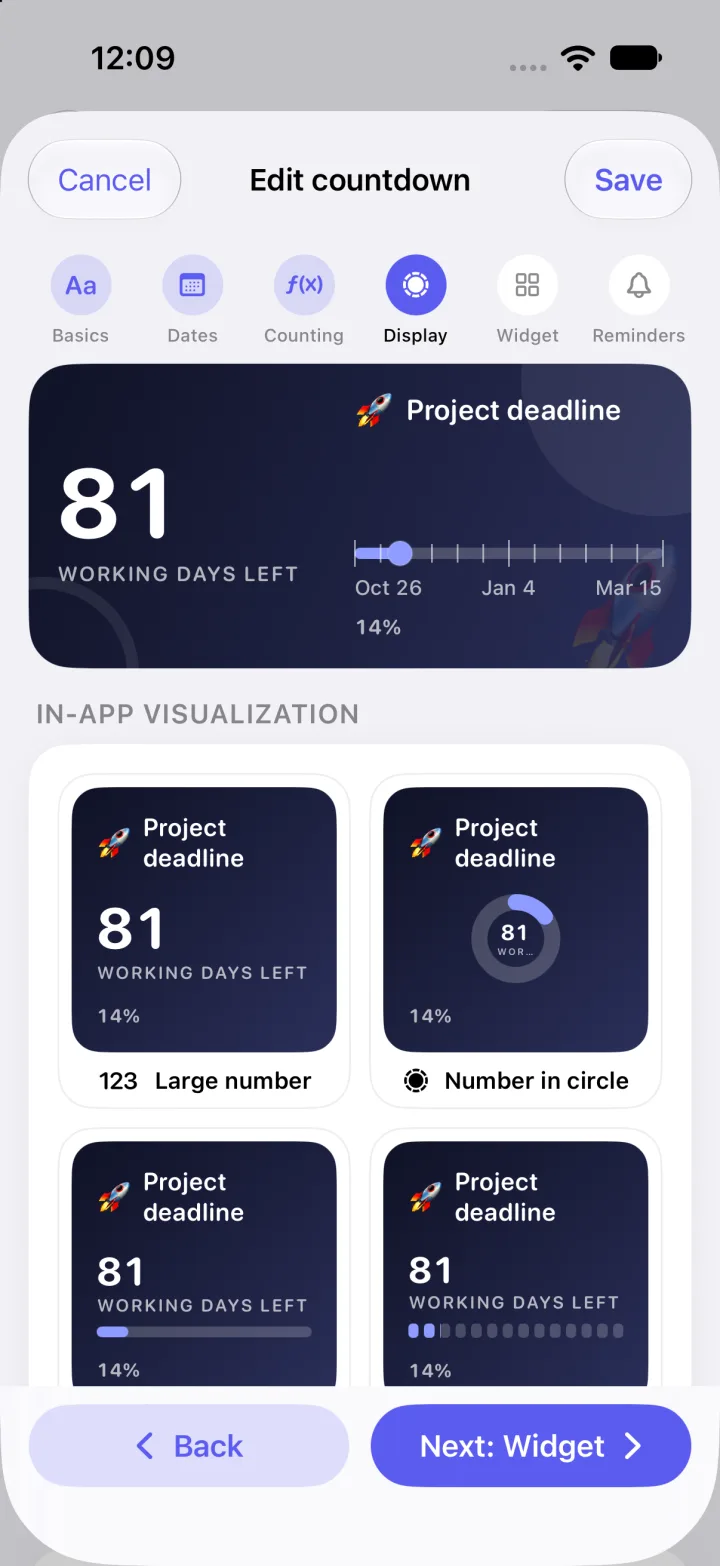
  • Large number, number in circle, progress bar, segmented bar, bar with scale, detailed or minimal.
  • Every style is previewed live with your own data.
Display step: in-app visualization styles previewed with the Project deadline counter

Widget

Style the widget down to the details.
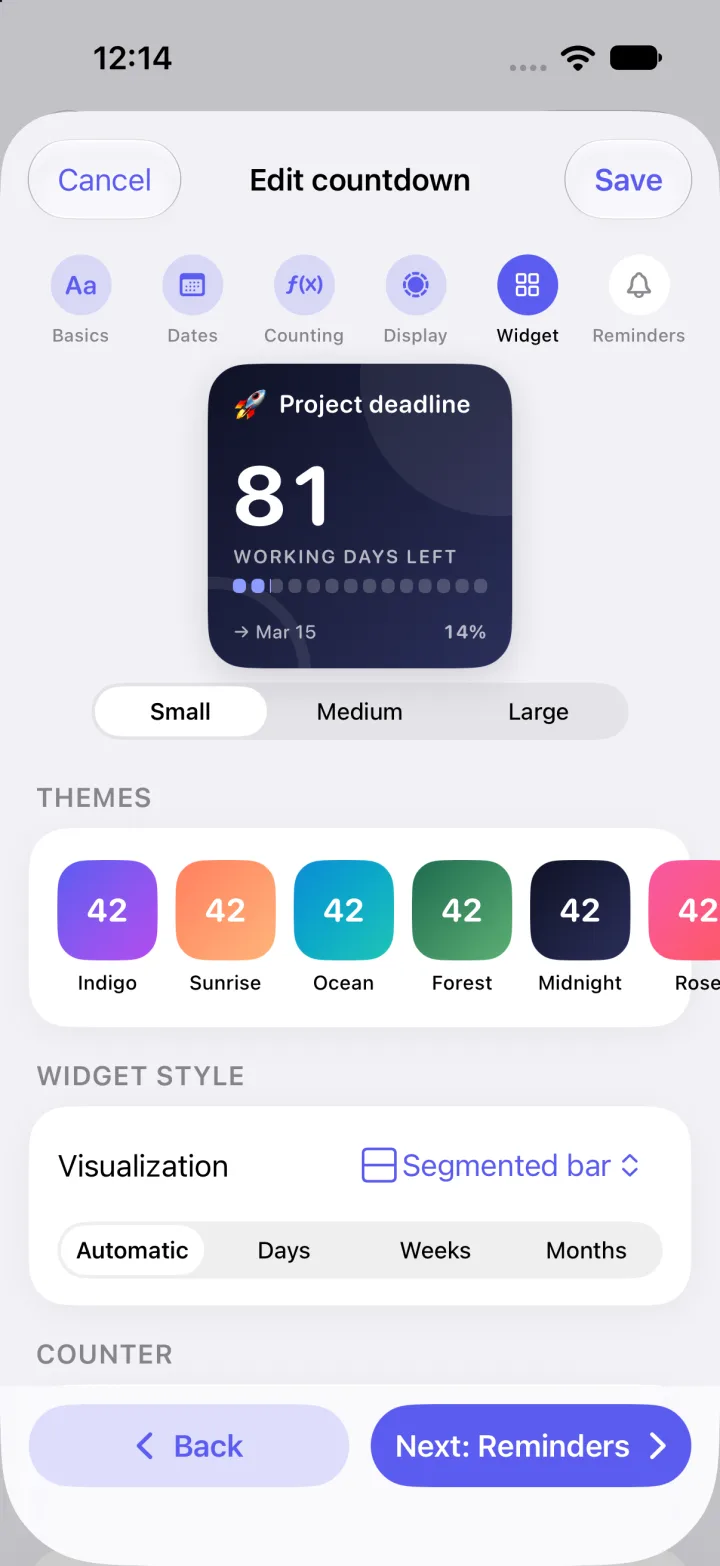
  • Preview small, medium and large sizes.
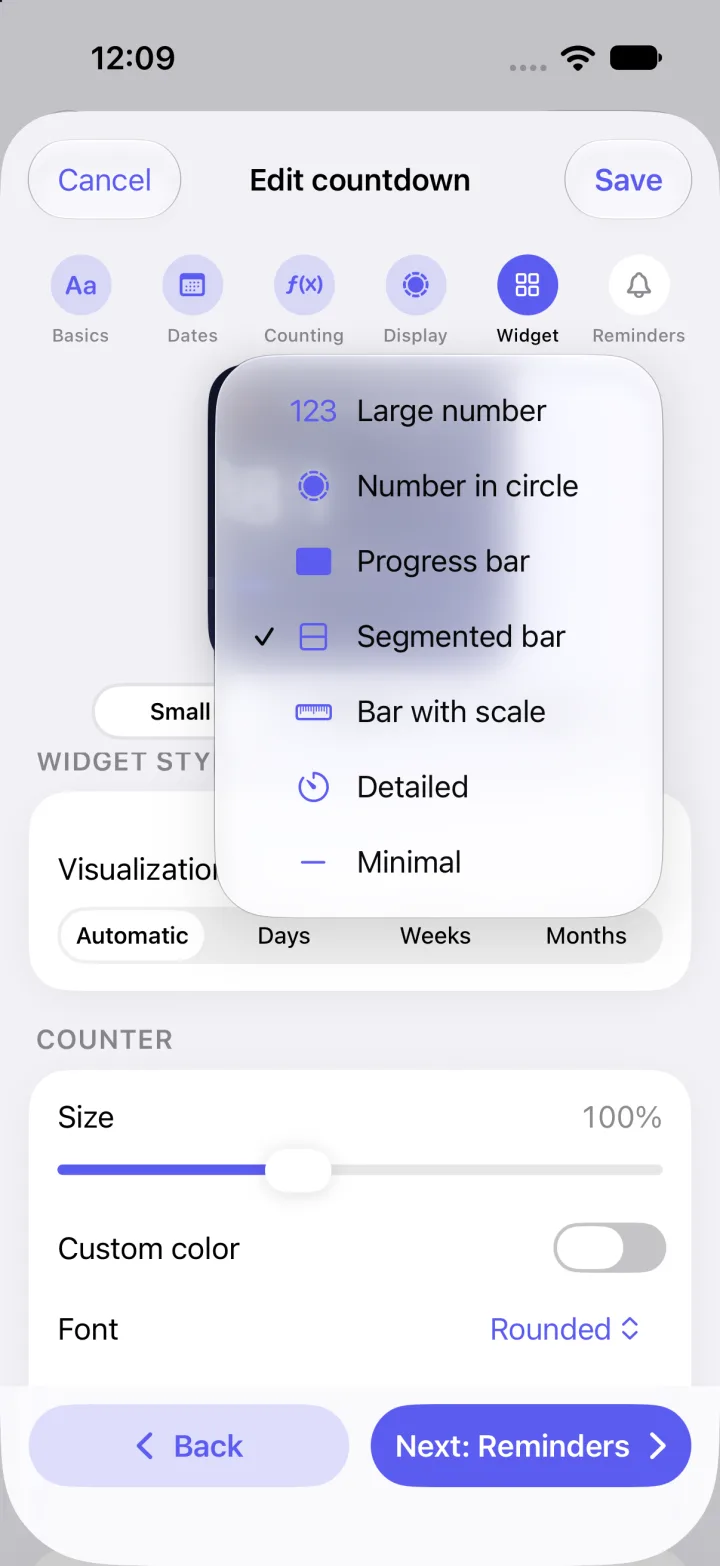
  • Colour themes plus the visualization style and time unit (days, weeks, months).
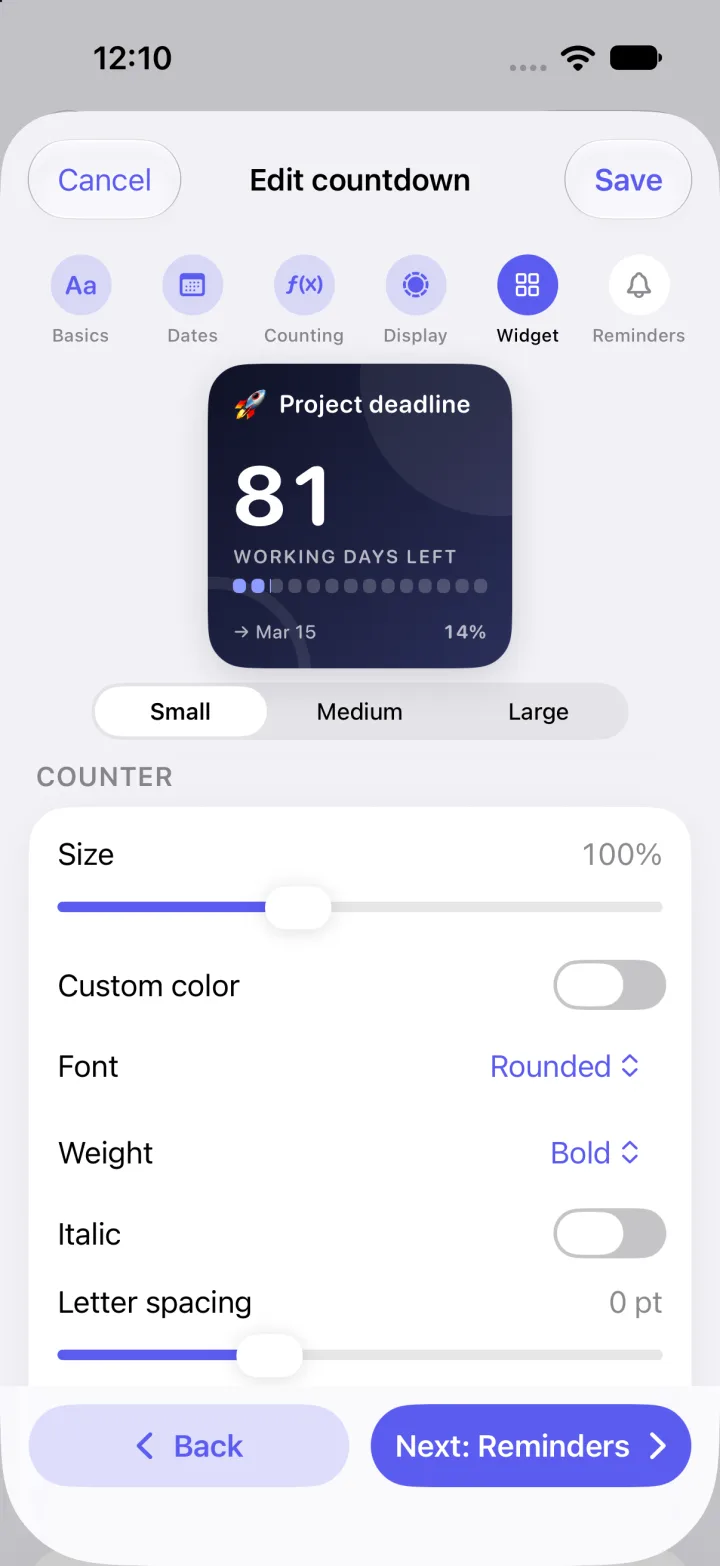
  • Counter size, colour, font, weight, italic, letter spacing and shadow.
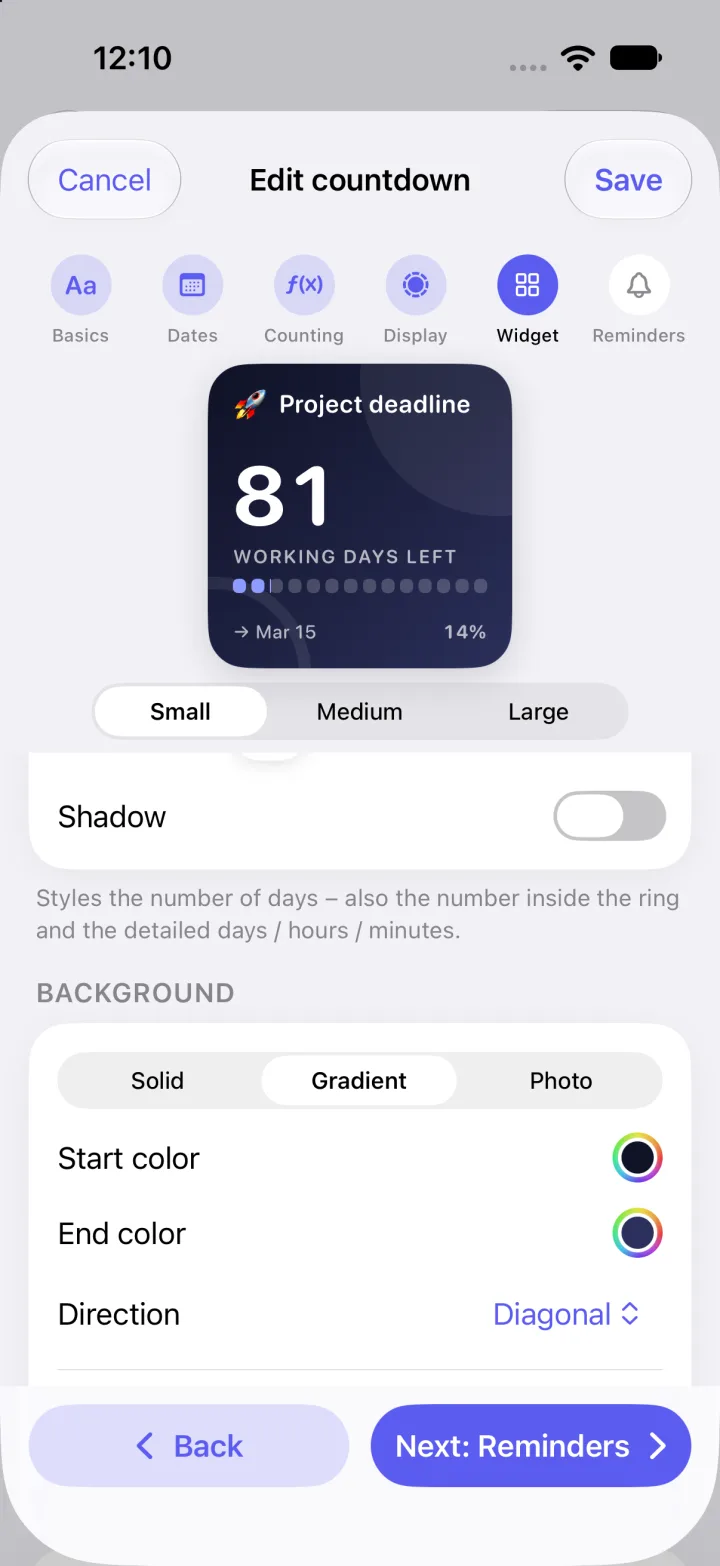
  • Solid, gradient or photo background with your own colours and direction.
Widget step: preview, colour themes and widget style
Widget step: visualization style menu
Widget step: counter typography settings
Widget step: background settings with gradient colours

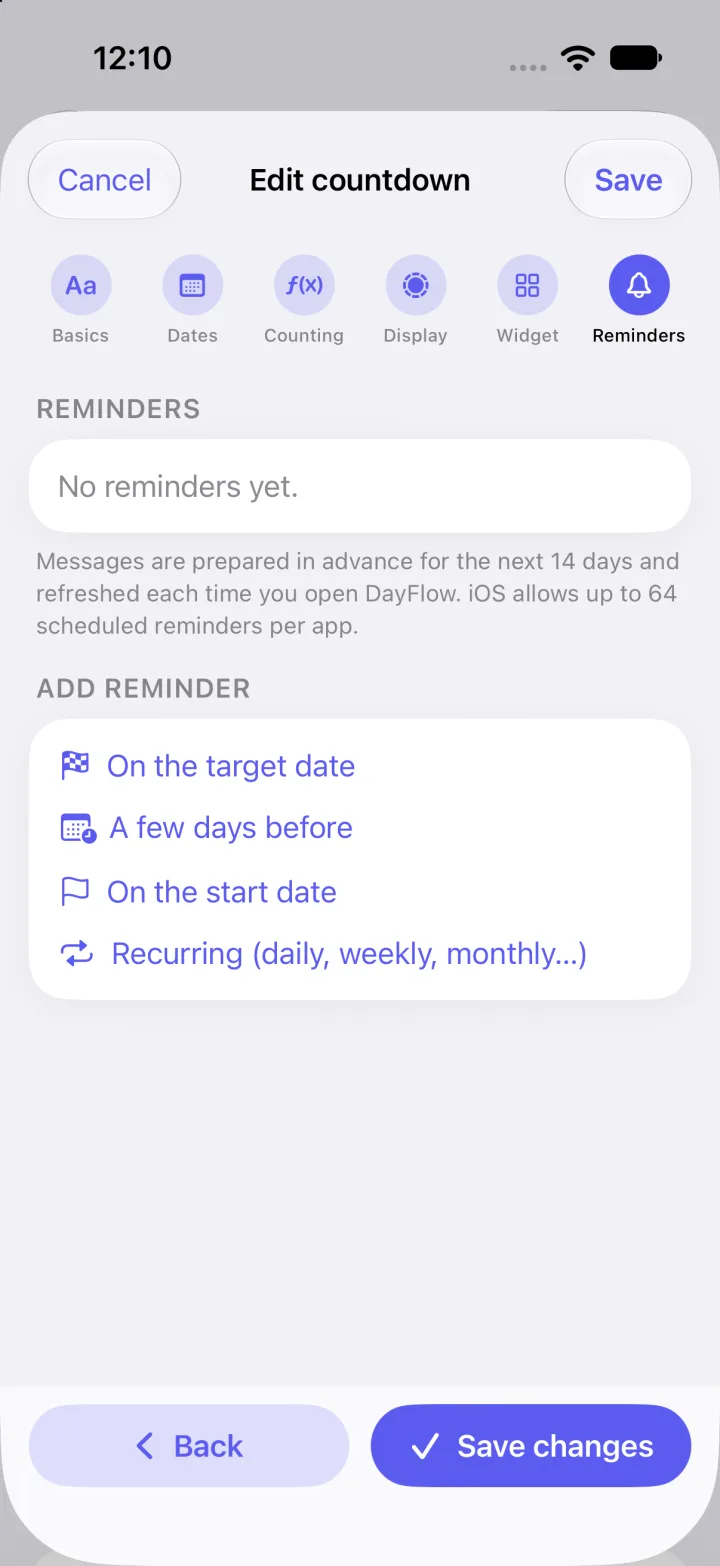
Reminders

Get nudged at the right moment.

  • On the target date, a few days before, or on the start date.
  • Recurring reminders: daily, weekly, monthly and more.
Reminders step with options to add a reminder

How it counts

A number you can trust

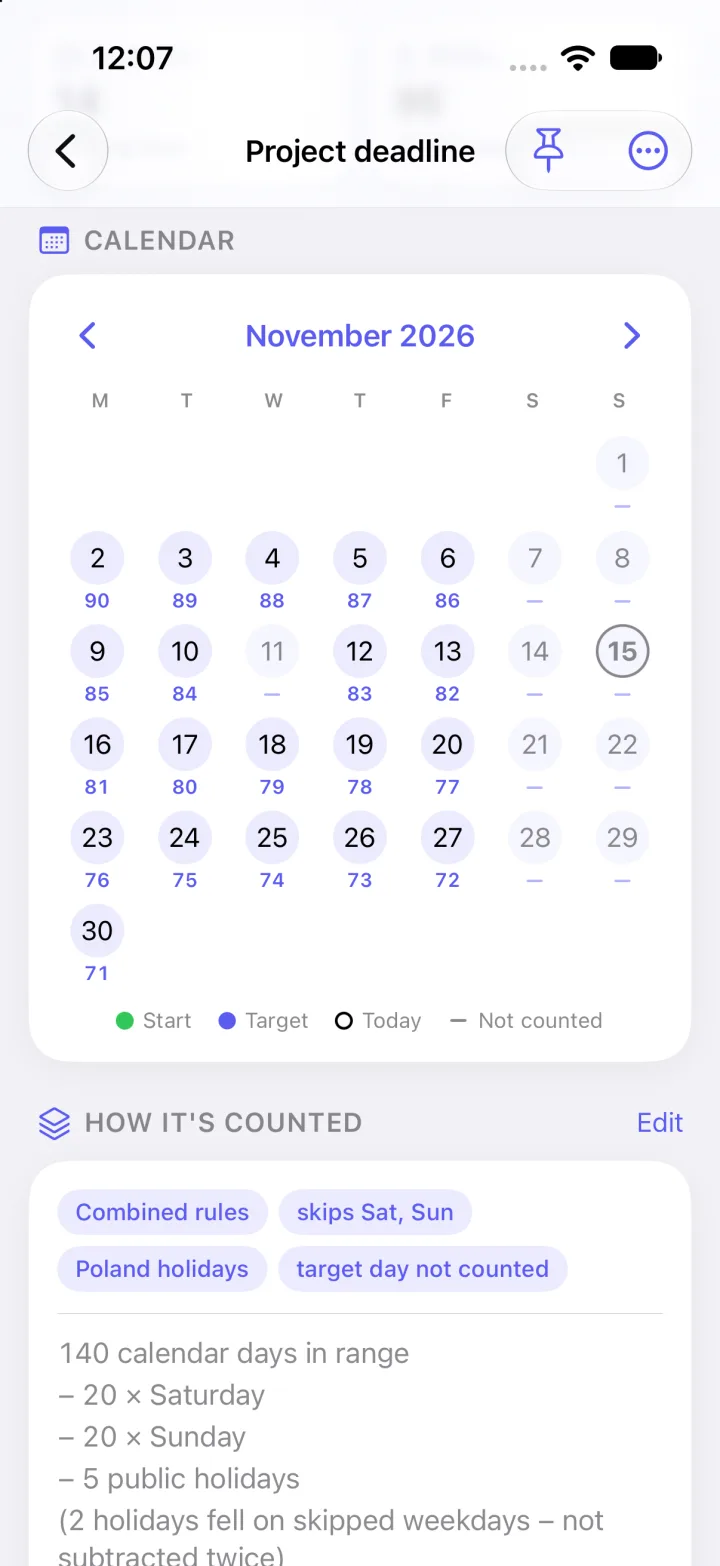
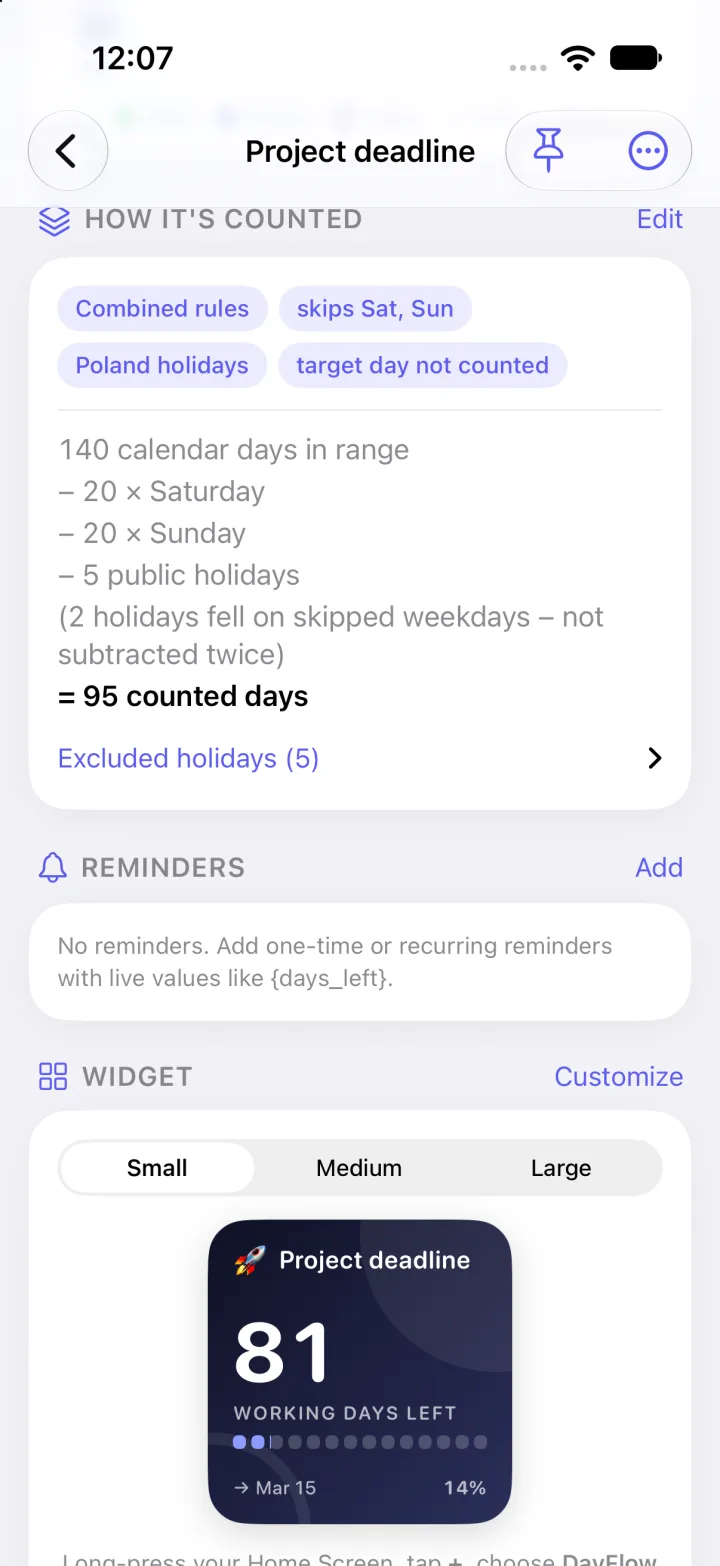
DayFlow shows where the result comes from: how many days are in range, how many were skipped, and why.

  • Calendar days, working days, custom weekdays, public holidays or combined rules.
  • Built-in holiday calendars: Poland, Germany, France and the United States.
  • A holiday on a weekend isn’t subtracted twice — and any holiday can be kept as a normal day.
  • Calculated on calendar days, so daylight-saving changes never skew the result.
DayFlow explaining how working days are counted: 140 calendar days minus weekends and public holidays equals 95 counted days
Calendar with the remaining working days written under each counted date

Widgets

Your countdown on the Home Screen

Every countdown has its own look: colour theme, style, font and an optional blurred photo background.

  • Small, medium and large sizes (extra large on iPad) plus Lock Screen widgets.
  • Ready-made themes: Indigo, Sunrise, Ocean, Forest, Midnight, Rose and more.
  • Widgets use the same rules as the app, so the numbers always match.
1

Add it

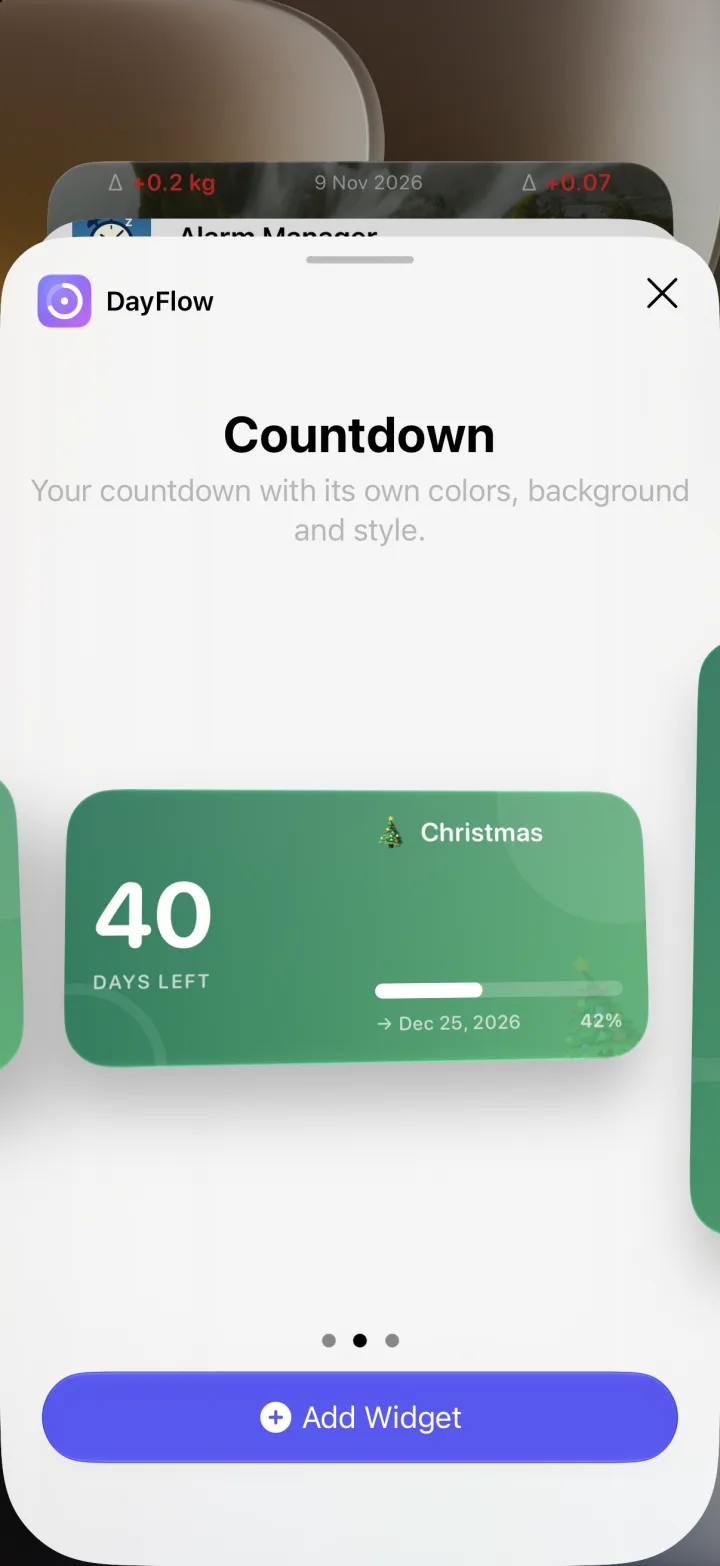
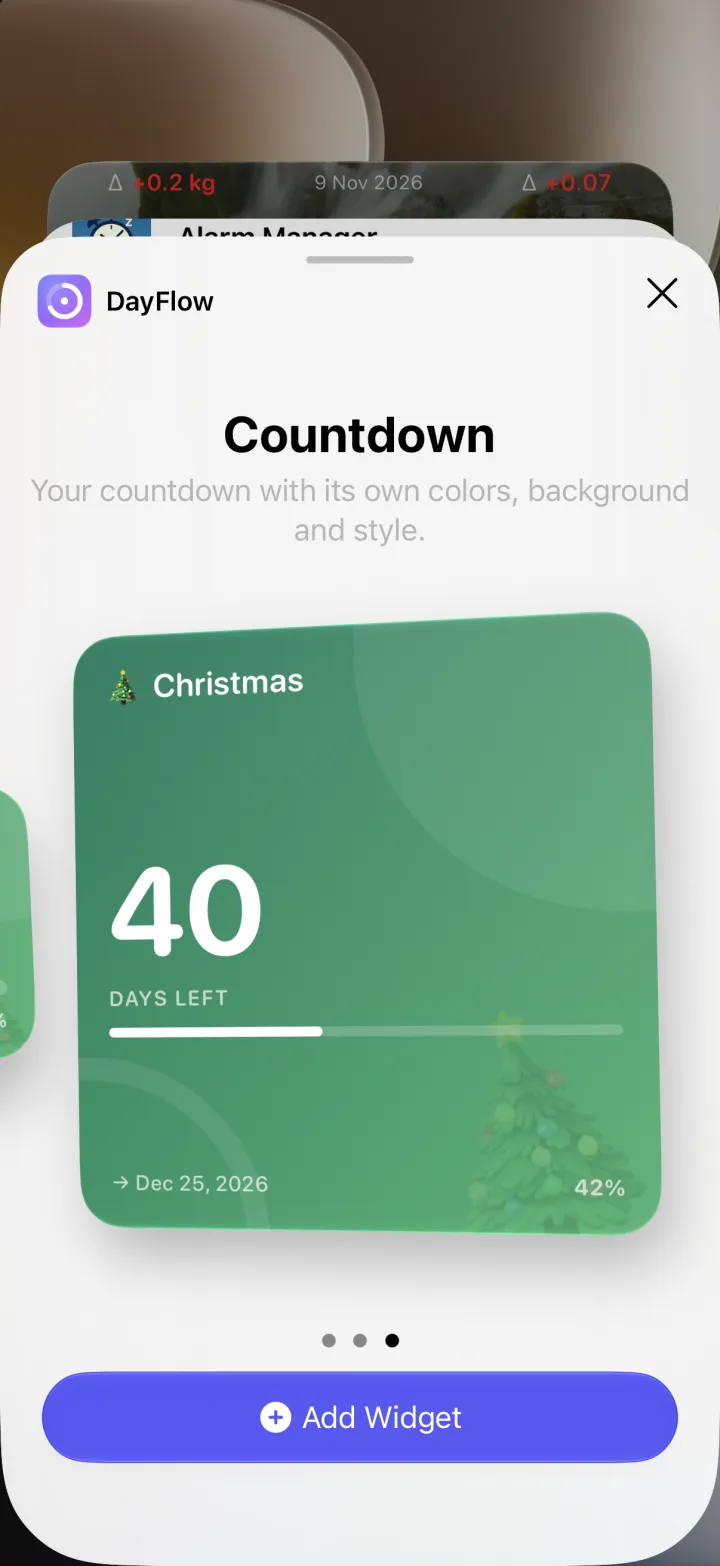
Long-press the Home Screen, tap + and choose DayFlow. Swipe through small, medium and large.
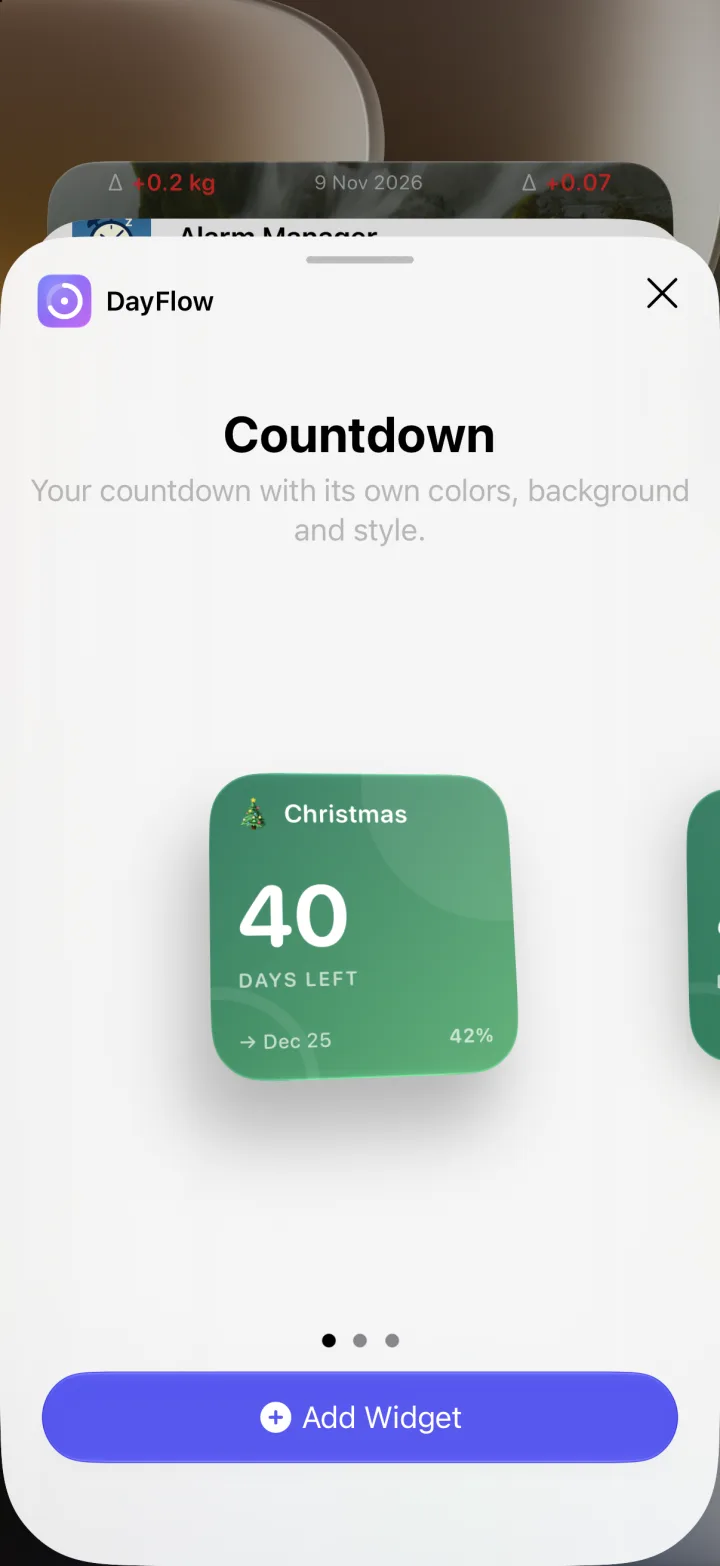
Widget gallery: small DayFlow Christmas widget
Widget gallery: medium DayFlow widget
Widget gallery: large DayFlow widget
2

Pick a countdown

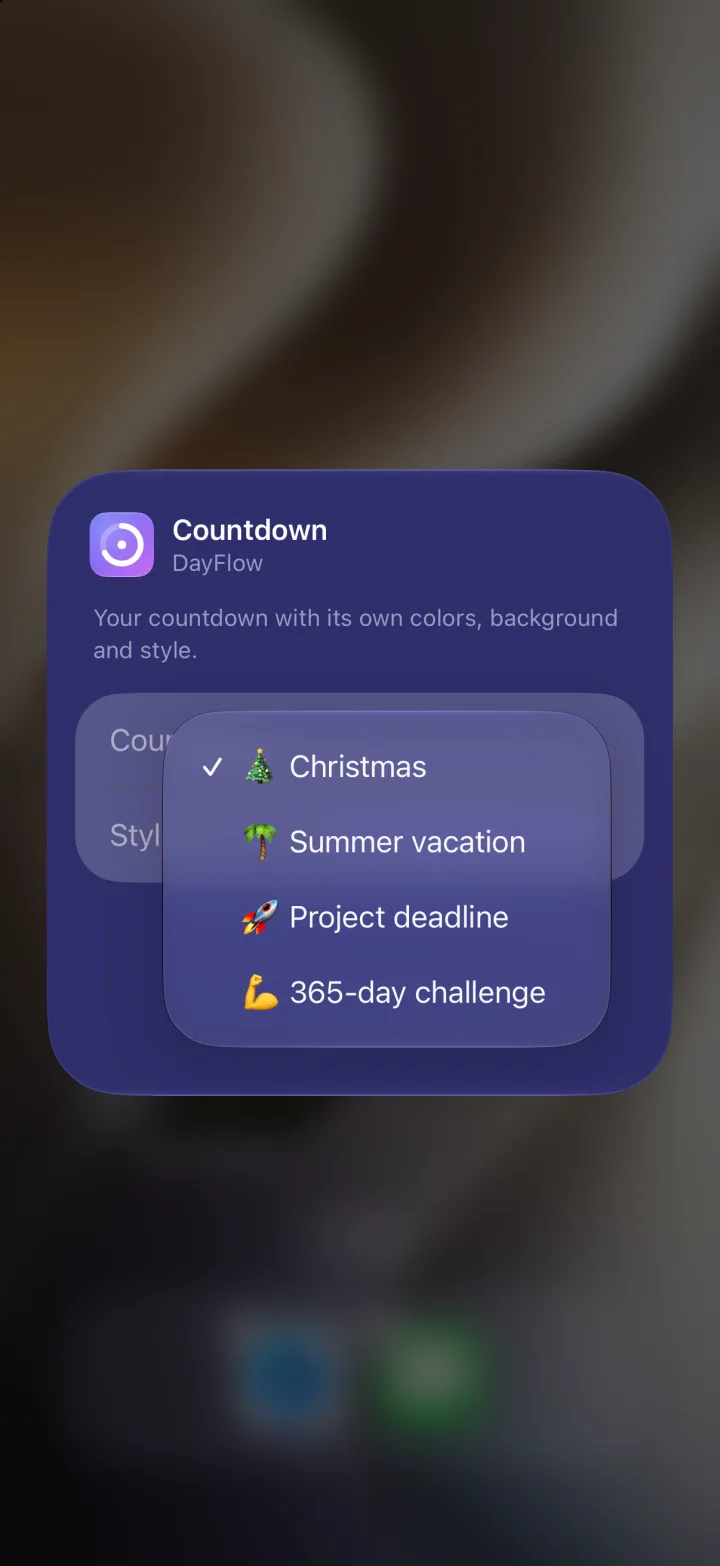
Long-press the widget → Edit Widget. Choose which countdown to show and keep the style from the app or override it.
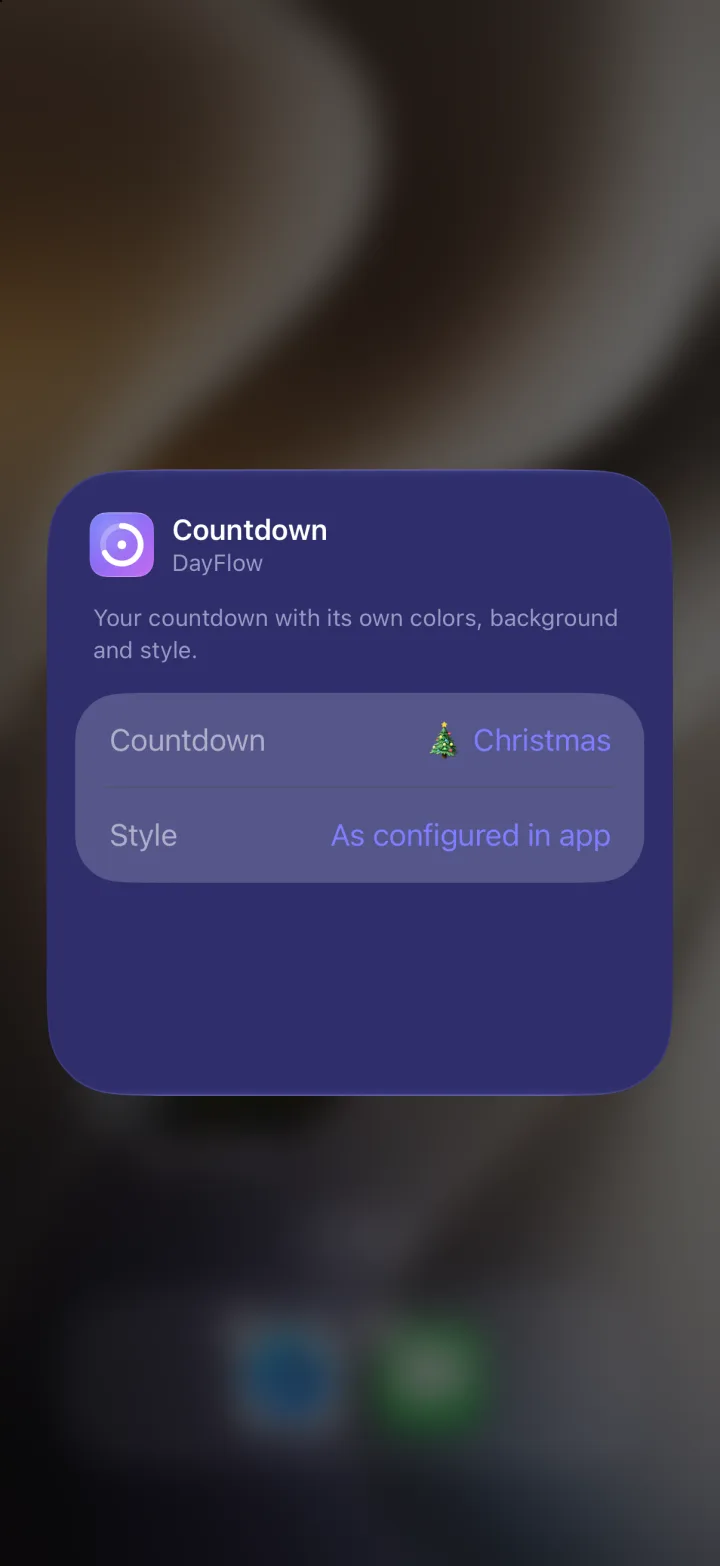
Widget settings: Countdown and Style
Widget settings listing countdowns
3

Enjoy the result

Each widget keeps its own colours and visualization — here three different styles side by side.
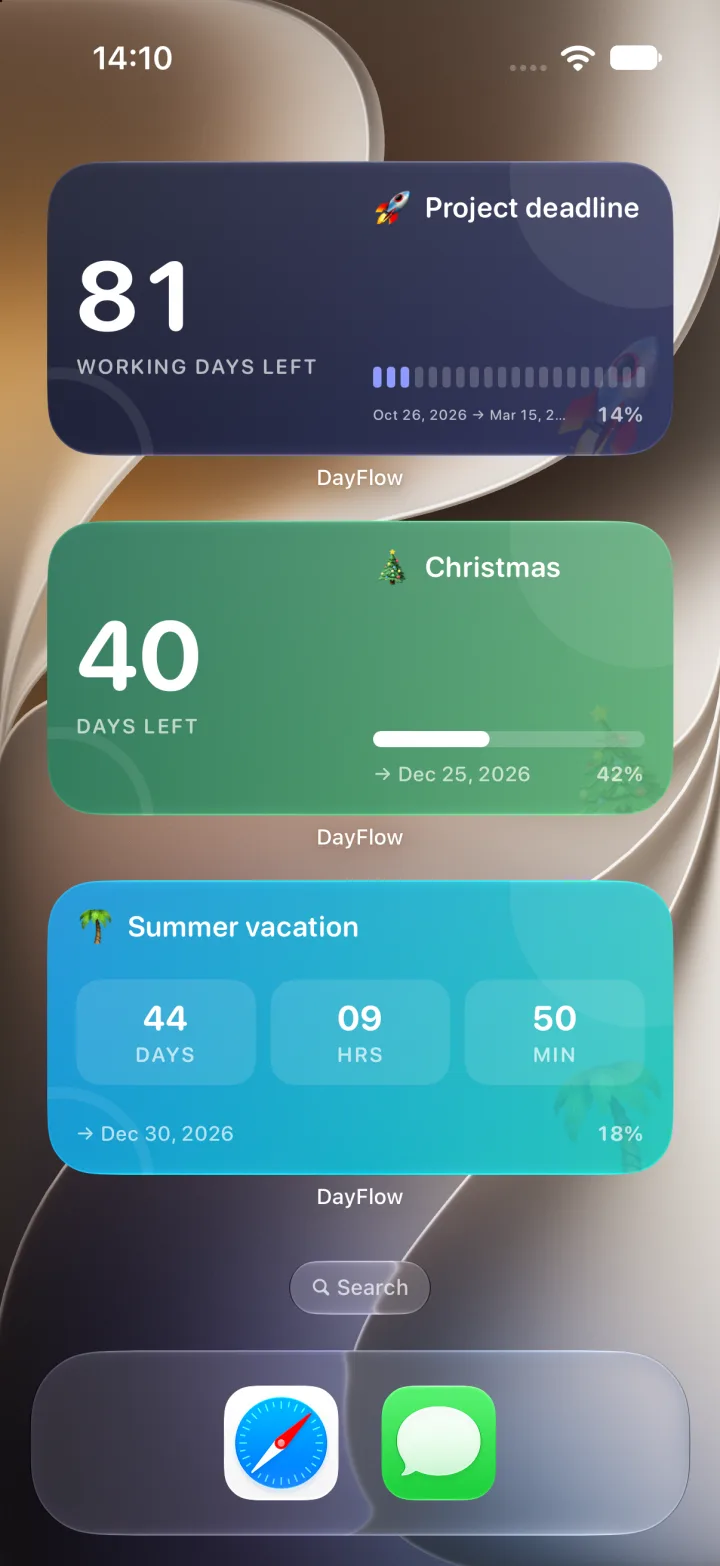
Three DayFlow widgets on the Home Screen: Project deadline, Christmas and Summer vacation

Reminders

Reminders that know the numbers

One-time or recurring (daily, weekly, monthly). Use placeholders like {days_left} in the message.
  • On the target date, a few days before, or on the start date.
  • Your own title and text with live values.
  • Prepared 14 days ahead and refreshed whenever you open the app.
Reminder options: on the target date, a few days before, on the start date, recurring
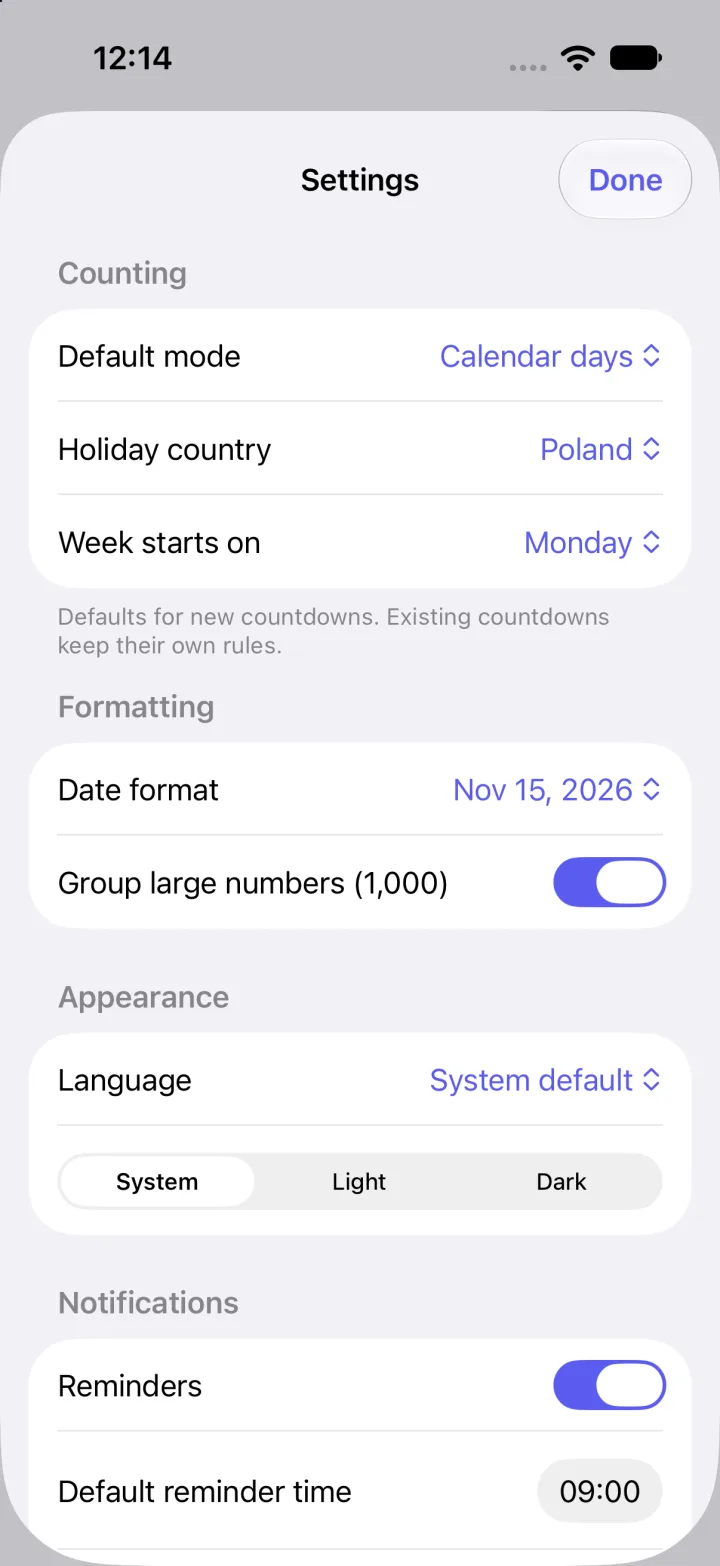
Settings: default counting mode, holiday country, week start, date format, language and theme
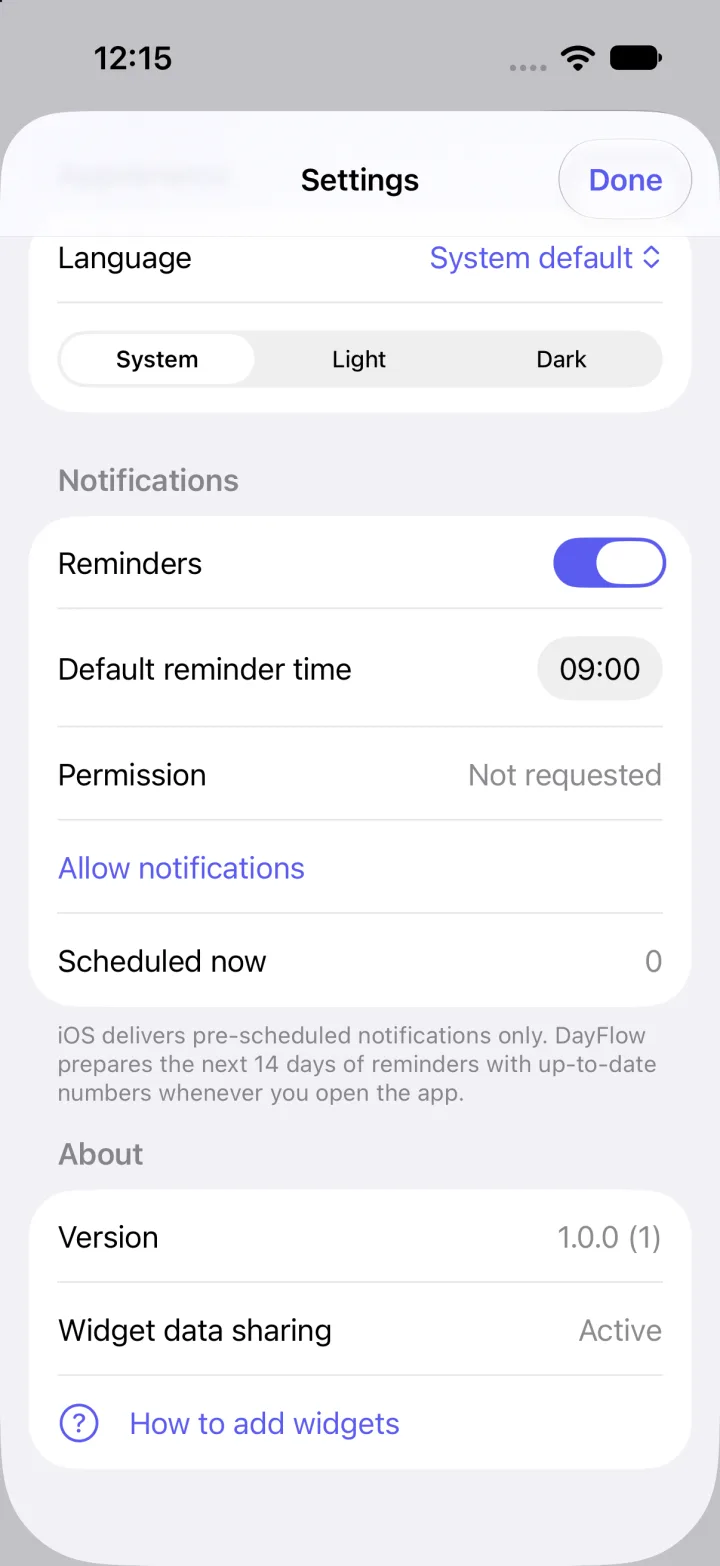
Settings: reminders, notification permission, version and widget data sharing

Settings

Set your defaults once

New countdowns start with the rules you prefer.

  • Default counting mode, holiday country and first day of the week.
  • Date format and grouping of large numbers.
  • Language (system, English or Polish) and theme (system, light or dark).
  • Reminders on/off, default reminder time and notification status.

Privacy

Your data stays with you

Based on the app’s current code:

No accounts

No sign-up or login required.

No tracking

The app contains no analytics or ads.

On-device

Countdowns and background photos are stored only on your device.

Read the privacy policy

Frequently asked questions

Which devices does DayFlow support?

iPhone and iPad running iOS 17 or later.

Does DayFlow need an account or internet?

No. There is no account, and counting happens locally on your device.

How do I add a widget?

Long-press your Home Screen, tap +, choose DayFlow and pick a countdown in the widget’s settings.

Why are reminders prepared 14 days ahead?

iOS delivers only pre-scheduled notifications, with a limit of 64 per app. DayFlow prepares them with up-to-date numbers and refreshes them each time you open the app. If you don’t open it for more than 14 days, reminders pause rather than show wrong numbers.

Which holidays are built in?

Poland, Germany (nationwide), France (metropolitan) and the United States (federal). US holidays use official dates without observed-day shifts.

Start counting your way

DayFlow — day counter, widgets and reminders in one app.